- Create & Send Great Emails
- Powerful Reporting & Archive
- Manage your lists and contacts
- Collects contacts through your website
Recipients get their own copies of your emails
A separate copy of your email newsletter is sent to each contact, with only one email address in the To: field.
No "CC" or "BCC" is used and your contacts cannot see who else is receiving a copy of the email newsletter.
Screen Shot: Sample newsletter delivered to support@ymlp.com
Send Plain Text Newsletters
(Besides sending plain text newsletters, you can also upload a HTML file you've created on your computer, use the WYSIWYG editor or use the Email Newsletter Builder)
A plain text email is very easy to create; just type your text and you're done. (You can't use colors, different fonts, hyperlinks, images, etc., though.)
Screen Shot: Creating a plain text email
Upload your own HTML files
(Besides uploading a HTML file, you can also send plain text newsletters, use the WYSIWYG editor or use the Email Newsletter Builder)
If you have created a HTML document in a HTML editor (Dreamweaver, etc...) or in a word processor (Microsoft Word etc...), you can upload your document, add a subject line and you're done.
If your file is referring to images not yet on the Internet, you'll be asked to upload these images to YMLP and YMLP will host the images on your behalf ("image hosting" feature).
Screen Shot: Uploading a HTML document
HTML WYSIWYG editor
(Besides using the WYSIWYG editor, you can also send plain text newsletters, upload a HTML file you've created on your computer or use the Email Newsletter Builder)
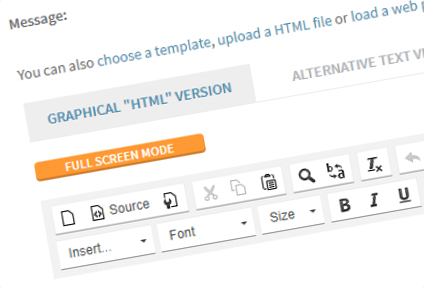
A simple but convenient HTML WYSIWYG editor is included that you can use to create an email newsletter from scratch or starting from one of the 30 templates in the Template Gallery.
Screen Shot: HTML WYSIWYG editor
Email Newsletter Builder
(Besides using the Email Newsletter Builder, you can also send plain text newsletters, upload a HTML file you've created on your computer or use the WYSIWYG editor)
The Email Newsletter Builder lets you create an email newsletter in a similar way Microsoft Publisher lets you create various publications:
- Pick a template from the Template Gallery with 30 sample layouts
- Change the predefined colors to a color scheme that matches your site or brand
- Edit section per section
- Move or delete existing sections
- Add new sections
Screen Shot: Email Newsletter Builder:
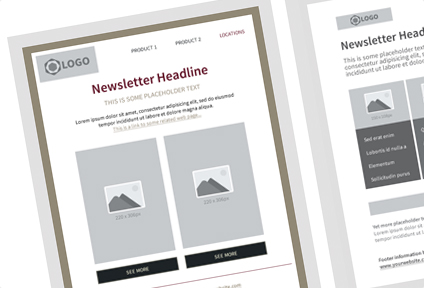
Template gallery with 30 sample lay-outs
To jump start your email newsletter, you can select a template to use in the WYSIWYG editor or in the Email Newsletter Builder or you can download a template to use in a HTML editor or in Word on your computer.
Screen Shot: Template Gallery:
"From:" Addresses Management
You can manage From: addresses to use for your email newsletters on the "Options" page in your account.
When composing a newsletters, you then can choose which From: to use for your email newsletter.
Screen Shot: Managing From: addresses
Screen Shot: Picking a From: address
Personalize newsletters with "mail merge"
Besides email addresses, you can store other information regarding your contacts (it's possible to create an unlimited number of fields for this).
Contacts data can be merged into newsletters ("mail merge"). This feature is often used for personalized salutations.
Screen Shot: Newsletter with "tags" for "mail merge"
Screen Shot: The "personalized" result
Schedule newsletters for a later date and time
You can choose to have a newsletter delivered immediately or schedule it to be sent at a later date & time.
Screen Shot: Configuring delivery time
Sending Attachments
Screen Shot: Uploading Attachments
Test Messages & Drafts
- "Test messages": before sending a newsletter to your contacts, you can send a test message to your own email address(es)
- "Drafts": a newsletter you're working on can be saved as a draft at any time. We can also automatically save your work every couple of minutes (in case your browser or computer would suddenly crash).
Screen Shot: Sending a test message / saving as a draft
Screen Shot: Managing Drafts
Unlimited Image Hosting
Images in email newsletters are usually hosted somewhere on the Internet (on your website, for example). The images are downloaded when the newsletter is opened by the recipient.
We can host images on your behalf. There are no restrictions to the number of images you can upload or manage using your account.
- When using the built-in WYSIWYG editor or the Email Newsletter Builder, you can upload images from your hard disk and we'll host the images on your behalf.
- If you upload a HTML file that refers to images not yet on the Internet, you'll be offered to upload these images we'll host the images on your behalf.
Screen Shot: Uploading & Managing Images in the WYSIWYG editor & Email Newsletter Builder
'Embedded images' option
Images in email newsletters typically are hosted on a website, and the images are downloaded when a recipient opens the newsletter (in most email programs, the recipient must click a button or link to approve image download).
Another way to include images, is to send them as embedded objects (a kind of attachments) contained in the newsletter. This way, in most email programs, the images will be visible immediately and the recipient doesn't have to click a button or link to turn on images.
To have your images sent as embedded objects, you only need to select this option on the Options page in your account.
Screen Shot: Email newsletter with an image hosted on a website
Screen Shot: Email newsletter with an "embedded" image
Send in any language
YMLP's database and sending infrastucture uses the universal UTF-8 character set, which means you can send email newsletters in any language - not just English but also Russian, Greek, Chinese, Japanese etc...