- Create & Send Great Emails
- Powerful Reporting & Archive
- Manage your lists and contacts
- Collects contacts through your website
Unlimited Groups
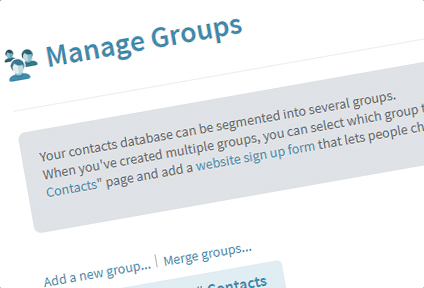
Your contacts database can be segmented into an unlimited number of groups.
When you've created multiple groups, you can select which group(s) to send to on the "Compose Newsletter" page, select which groups to add to "Add/Import Contacts" page and add a website sign up form to your website that lets people choose their interests.
Screen Shot: Managing Groups
Unlimited Fields
You can create as many fields as needed to store/collect information about your subscribers.
This information can be used to personalize newsletters for example.
Screen Shot: Managing Fields
Easily Import Contacts
Contacts can be added one by one, contacts can be pasted into a form or a file with contacts (Excel, CSV or text) can be uploaded on the "Add/Import Contacts" page in your account.
Step by step instructions to export data from Outlook, Outlook Express, Yahoo, etc. to a CSV file you can upload to your account are included.
To store contacts data, an unlimited number of fields and groups can be created.
Screen Shot: adding one contact at a time
Screen Shot: uploading a file with contacts
Automated list deduplication & cleanup
We'll automatically make sure there are no duplicate email addresses, no invalid email addresses, no email addresses from people who previously unsubscribed ad no obsolete email addresses previously removed by bounceback handling in your list: when such email addresses are uploaded, they'll be refused.
Screen Shot: Refused email addresses...
Edit contacts as in a spreadsheet
One of the powerful list management features is that you can quickly edit your contacts interactively on one page (without navigating back and forth between pages), as you would do in Excel.
Screen Shot: Editing Contacts
Export contacts at any time
All lists, groups and fields can be exported at any time.
Screen Shot: Exporting Contacts
Bulk unsubscribe contacts
If you have an existing opt-out or suppression list, you can upload this list on the "Remove Contacts" page in your account. We'll make sure these contacts aren't inadvertently added back in (previously unsubscribed contacts are refused when you upload them on the "Add/Import Contacts" page).
Screen Shot: Bulk unsubscribe contacts
Automated unsubscribe handling
An unsubscribe/update profile link is automatically appended to your newsletters. Contacts can unsubscribe or update their information in your database through this link.
Email addresses from contacts who unsubscribed are removed from your database and moved to a separate "unsubscribed" list. This unsubscribed list is used to make sure that email addresses from contact who unsubscribed are not added back in, and can also be exported.
Screen Shot: "Unsubscribed" list
Automated bounceback handling
Each year, 10 to 25 percent of the Internet users change their email address. Removing obsolete email addresses from your list based on bounceback error messages is a time consuming and dreadful job.
The "bounceback handling" feature intercepts bounceback error messages and automatically processes them on your behalf: a bounceback report is generated and obsolete email addresses are removed from your contacts database and moved to a separate "bounced" list that can be viewed and exported.
Screen Shot: A "bounceback" error message
Screen Shot: Bounceback report